

Plane Mobile App
The Plane mobile app puts your work in your pocket.
Create and update work items, comment and mention teammates, track cycles, and stay on top of notifications from your phone. It is available for iOS and Android, and works alongside the web app: anything you change on mobile syncs to the web and everywhere else you use Plane.
This page covers what is specific to mobile: getting the app, signing in, finding your way around, and managing notifications.
System requirements
| Platform | Minimum version |
|---|---|
| iOS | iOS 14.0 or later |
| Android | Android 10 or later (SDK 29+) |
Editions and plans
- Available on Plane Cloud and self-hosted Commercial Edition (from version
v1.12.0). - Supported on all plans, including Free.
Download and install
Head over to Download to install the app for Android or iOS.
Once installed, open the app and sign in to your workspace.
Sign in
You can sign in to the mobile app with the same credentials you use on the web.
WARNING
You cannot create a new account from the mobile app. You must already belong to at least one workspace. If you are new to Plane, sign up on the web first, then sign in on mobile.
Here’s how you can get started:
For cloud users
Tap Cloud sign in and enter your credentials to log in.For self-Hosted users
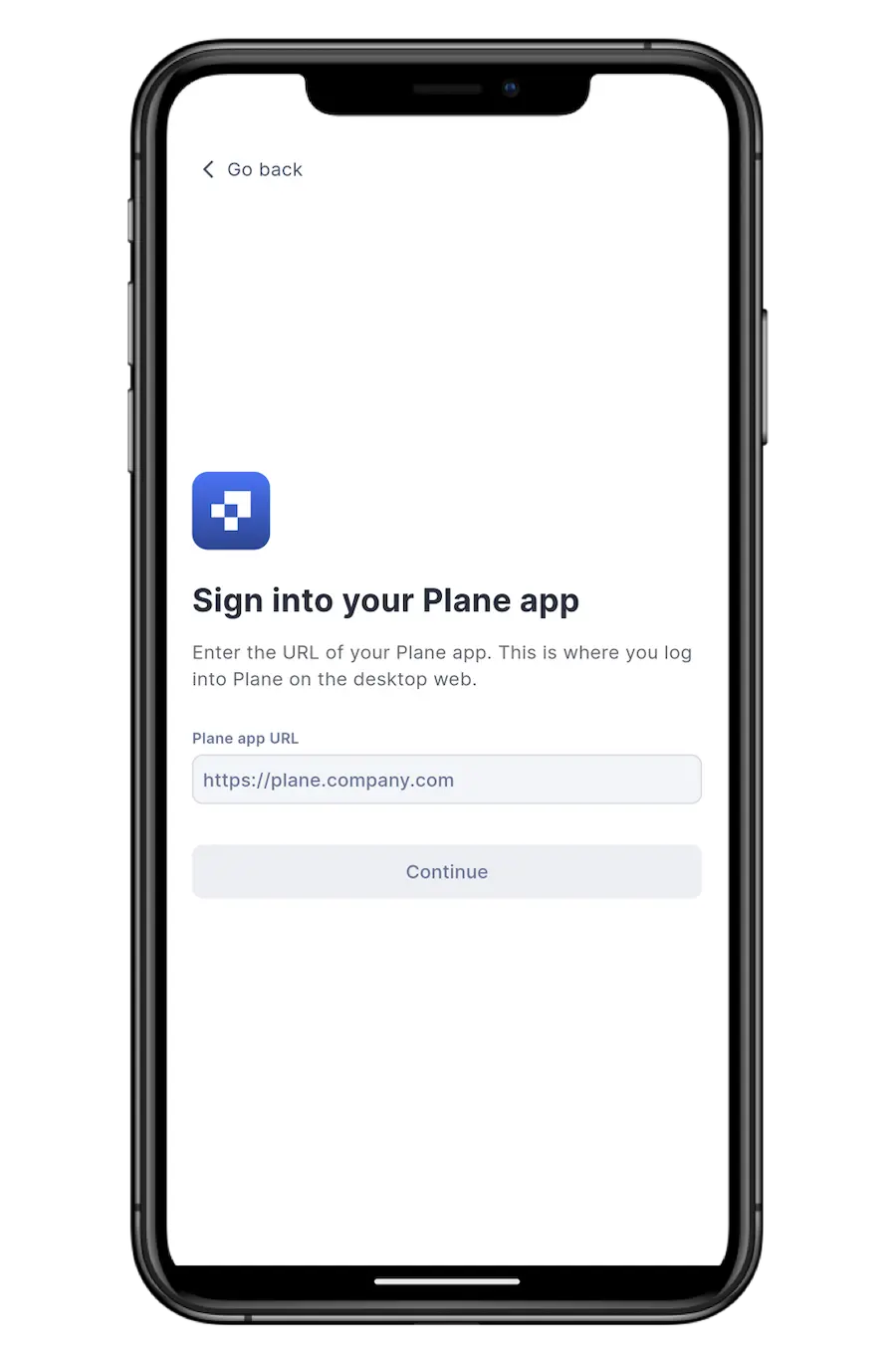
Tap Self hosted sign in, then enter your Plane app URL. Once that’s done, log in with your credentials to access your workspace.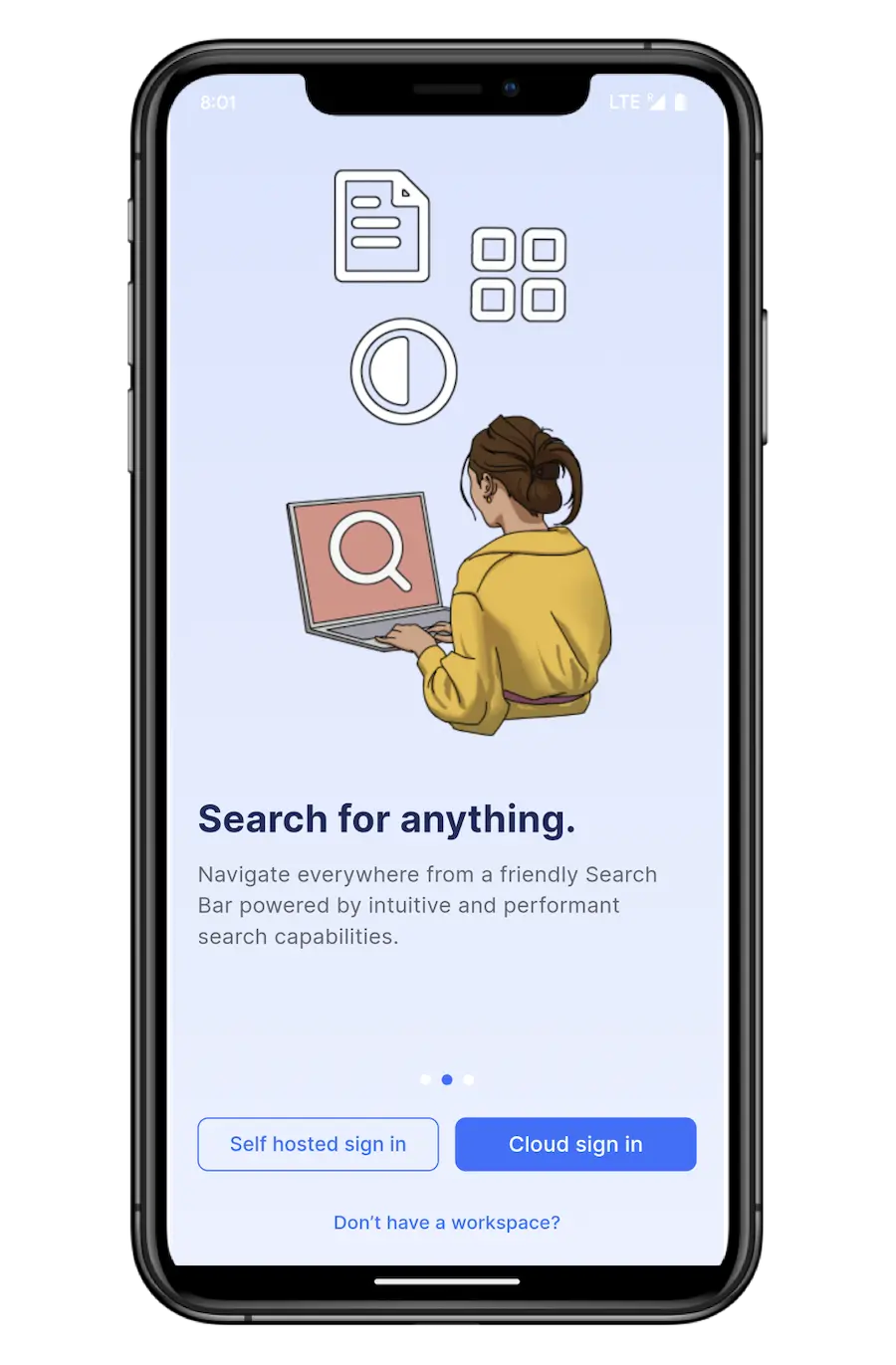
Switching workspaces
To switch between different workspaces, simply tap your workspace icon in the top left corner and switch between them from the workspace switcher. Your data, projects, and notifications update to reflect the selected workspace.
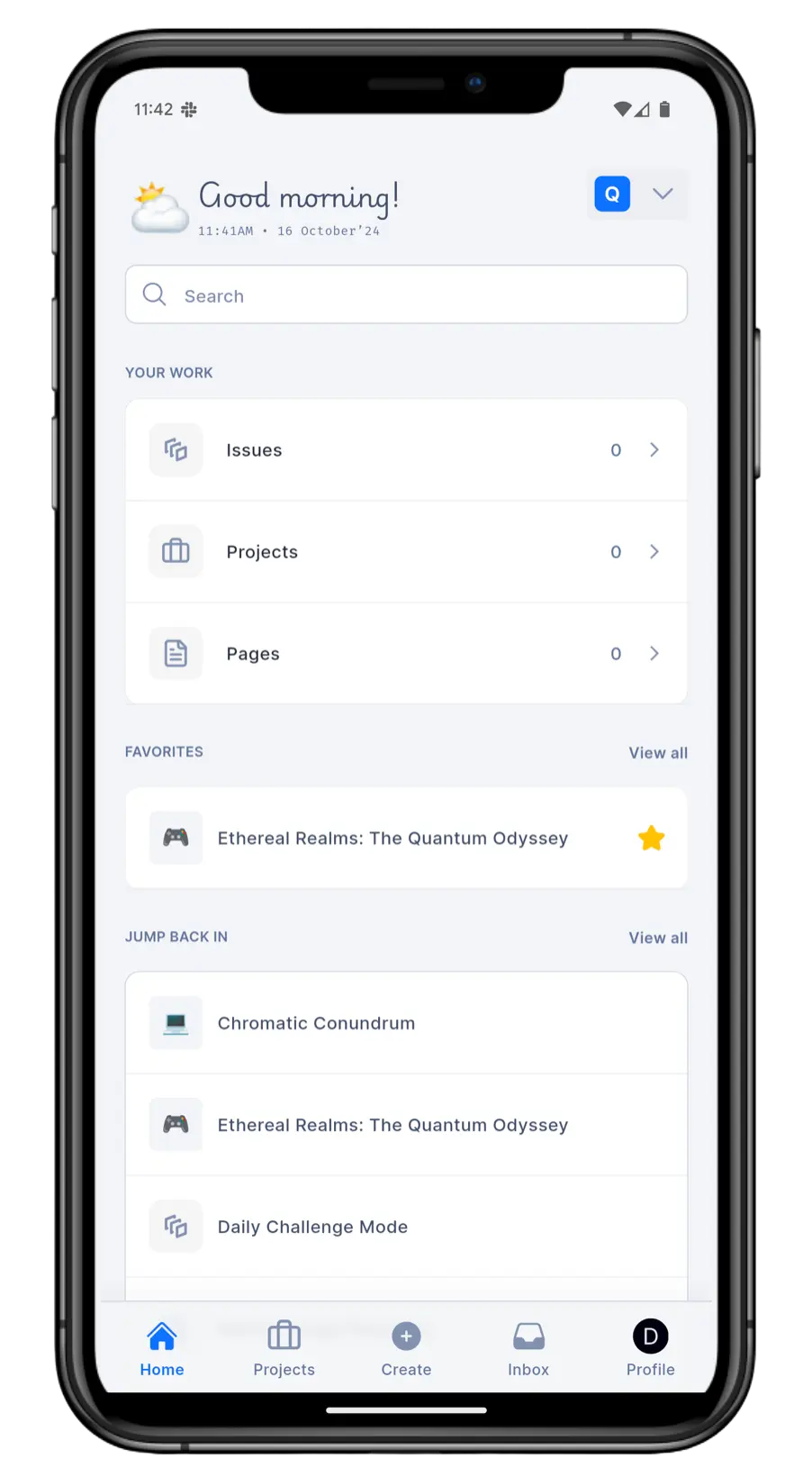
The app is built around a bottom bar with three tabs and a central + create button.
Get around the app
The three tabs
- Home - your starting point for the workspace.
- Inbox - your notification center, with an unread badge.
- Search - search across the workspace for projects, work items, cycles, modules, pages, and more.
Create
Tap the central + Create button to add new content from anywhere. Depending on your role and enabled features, you can create a project, work item, a page, or a sticky.
Home
Home mirrors the web and is organized into sections you can rearrange or hide (tap Manage widgets icon next to youy profile to customize).
- Your work — assigned and recent items
- Recent activity — projects, cycles, modules, pages, and work items you've opened recently
- Favorites — the projects and items you've starred
- Stickies — your quick notes (when enabled)
The Home header also holds the workspace switcher and a catch-up card.
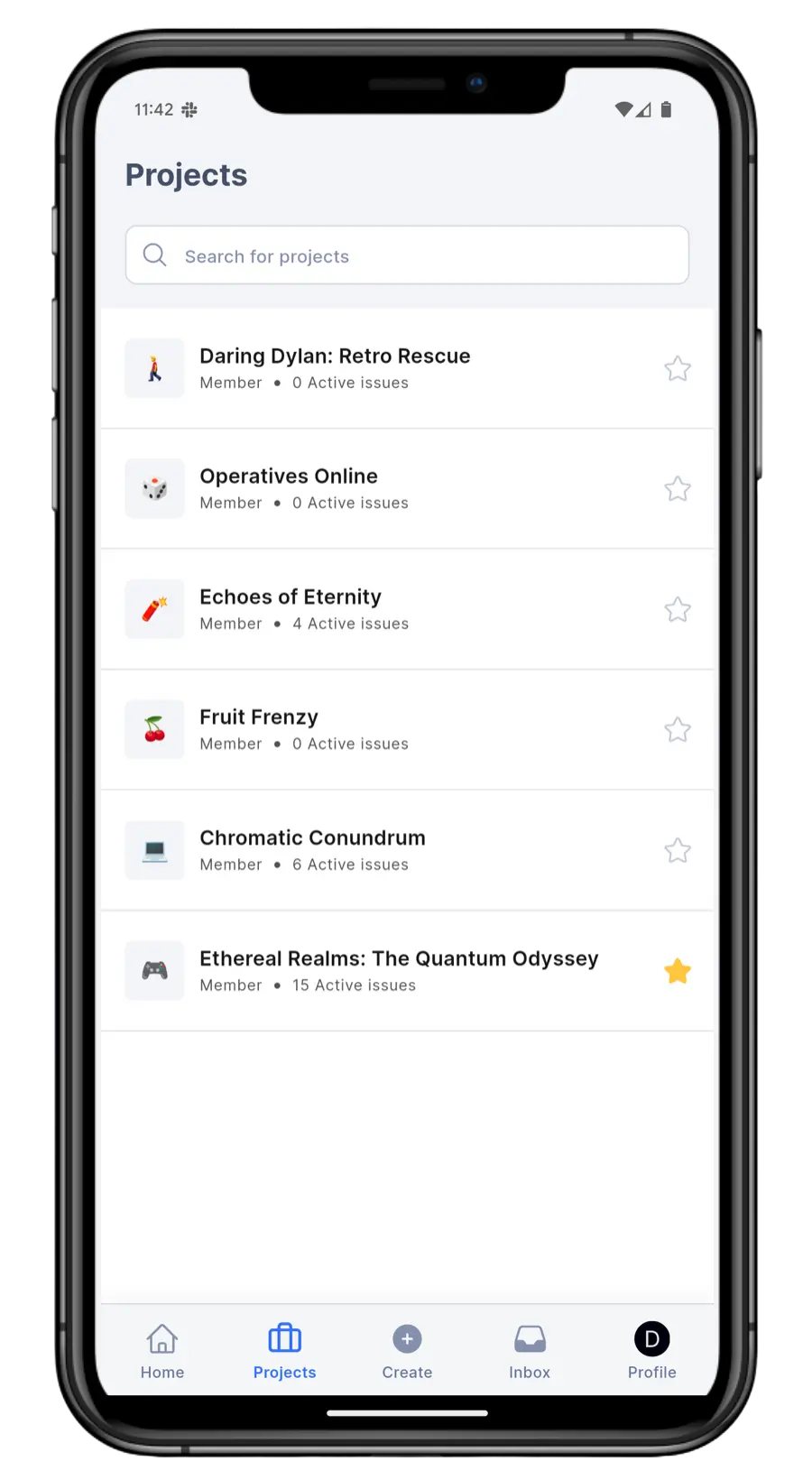
Projects
Your projects are reached from within Home. Open a project to see its Work items, Cycles, Modules, and Pages. Tap the star icon to add it to Favorites.
Gestures
- Pull down to refresh a list or screen.
- Tap a work item to open its detail view.
- Swipe on some list items for quick actions.
- Long-press and drag to reorder items where supported.
Appearance
The app supports Light, Dark, and System themes. System follows your device's appearance setting automatically.
Work on the go
The mobile app supports the core of your day-to-day work. Each area links to its full documentation.
Work items
Create work items and edit their title, description, state, priority, assignees, labels, and start/due dates. Open a work item to manage its sub-items, attachments, and relations. See [Work items][/core-concepts/issues/overview].
Comments and mentions
Comment on any work item and @mention teammates to notify them. React to comments. Comments and mentions sync across web and mobile. See [Comments and mentions][/communication-and-collaboration/comments-and-activity].
Cycles and modules
View cycles and modules, open them to see their work items, and add or move work items between them. See [Cycles][/core-concepts/cycles] and [Modules][/core-concepts/modules].
Pages
Read and edit pages in the mobile editor, with rich-text formatting, images, and more. See [Pages][/core-concepts/pages/overview].
Intake
Review and manage incoming work items from intake. See [Intake][/intake/overview].
Plane AI (Pi)
When AI is enabled for your workspace, use the Pi assistant to chat, ask questions, and work with AI threads from the app. See [Plane AI][/ai/plane-ai].
Notifications
Notifications are where the mobile app is especially useful, letting you respond to what needs your attention without opening your laptop.
Push notifications
INFO
Push notifications are currently available only for Plane Cloud users.
The app sends push notifications for events that involve you, such as new assignments, comments, and mentions on work items, epics, and intake items. Notifications appear on your device's lock screen and update your app badge count.
Push notifications are delivered through your device's native system (Apple Push Notification service on iOS, Firebase Cloud Messaging on Android). To receive them, allow notifications for Plane when the app first asks, or enable them later in your device settings.
Managing notification preferences
Control which notifications you receive from your notification settings in the app. Adjust these to reduce noise or focus only on what matters most to you.
The Inbox
Open the Inbox tab to read notifications and tap to jump to the item; mark as read, snooze, archive, and filter (e.g. unread only). Your inbox stays in sync across mobile and web.
Your notification inbox stays in sync across mobile and web.
See Notifications.
Home-screen widgets and shortcuts (iOS)
On iOS/iPadOS, add Plane widgets for one-tap capture: Create Work Item and Create Page. You can also long-press the app icon for Quick Actions.
Home-screen widgets are not available on Android yet.
What's different on mobile
The mobile app focuses on the work you are most likely to do away from your desk. Some capabilities available on the web are not present on mobile, or work differently.
Feature availability also depends on your plan. Features such as Wiki and AI capabilities appear in the app only when they are enabled for your workspace.
Privacy and security
- Privacy Screen - blurs the app's contents in the app switcher and background so sensitive work isn't visible in previews.
- Device integrity - Plane doesn't run on jailbroken or rooted devices.
Offline and syncing
The app caches recently viewed data so those screens load quickly and stay viewable when your connection drops. Editing requires a connection - there is no offline edit queue. When back online, pull to refresh to sync.
Troubleshooting
Unable to log in to the mobile app
This error occurs when attempting to log in to the mobile app with a self-hosted URL on the Community Edition or an outdated version of the Commercial Edition.
Ensure your Plane instance is running the Commercial Edition version
v1.5.0or higher. If you are using an older version, update to the latest version.If you are on the Community Edition, upgrade to the Commercial Edition to access mobile app functionality.
Retry logging in and ensure the self-hosted URL is entered correctly in the app.
Sign-in issues on Android
If you're having trouble signing into the Plane app on your Android device, here are a few steps you can follow to get things working:
Sign-in button doesn’t open the app?
Make sure you have a browser (like Chrome, Firefox, or Edge) installed on your phone.
App still not opening, even with a browser installed?
- Check which profile the Plane app is installed under — Personal or Work.
- Make sure the browser is also installed in the same profile.
Browser opens, but sign-in keeps looping?
This might be due to default browser settings. Try the following:
- Open your device’s Settings.
- Go to Apps or Default Apps.
- Find and tap on the browser you're using.
- Look for an option like Clear defaults or Reset default app
- Clear the defaults, then try signing in again.
You’ll be prompted to choose a browser. Choose one that's in the same profile as the Plane app.
Still stuck?
Try clearing site data:
- When the web sign-in page opens, tap the three-dot menu (usually in the top-right corner of the browser).
- Go to Settings → Site settings → Clear data (wording may vary slightly by browser).
- Try the sign-in process again.
Unable to log in using SSO
Ensure the correct Redirect URI is configured in your OAuth service:
- For Google Sign-In: Add the following URL to the Redirect URIs section in your Google Cloud Console:bash
https://<plane.example.com>/auth/mobile/google/callback/ - For GitHub Sign-In: Add the following URL to the Callback URL section in your GitHub OAuth app:bashVerify that the
https://<plane.example.com>/auth/mobile/github/callback/<plane.example.com>part of the URL matches your self-hosted instance's domain.
Link not opening iOS app
If clicking links doesn't open the Plane iOS app and instead redirects to your browser, this is usually related to how iOS handles Universal Links.
Why this happens
- Your default browser may not be Safari.
- You may have previously opened the web app (
https://app.plane.so) in your browser, causing iOS to associate the domain with the browser instead of the app.
How to fix it
- Open the link in Safari.
- A banner will appear at the top that says Open and stays for about a second.
- Tap Open before the banner disappears to launch the Plane app.
- Try clicking the link from any other app to verify that it now opens the Plane app directly.